HighLevel Integration Setup Guide for users
Step 1 - Enable the extension for HighLevel
After your administrator has enabled the HighLevel integration, the next time you use CrankWheel, you will be prompted to visit the CrankWheel CRM integration page to complete CRM setup.
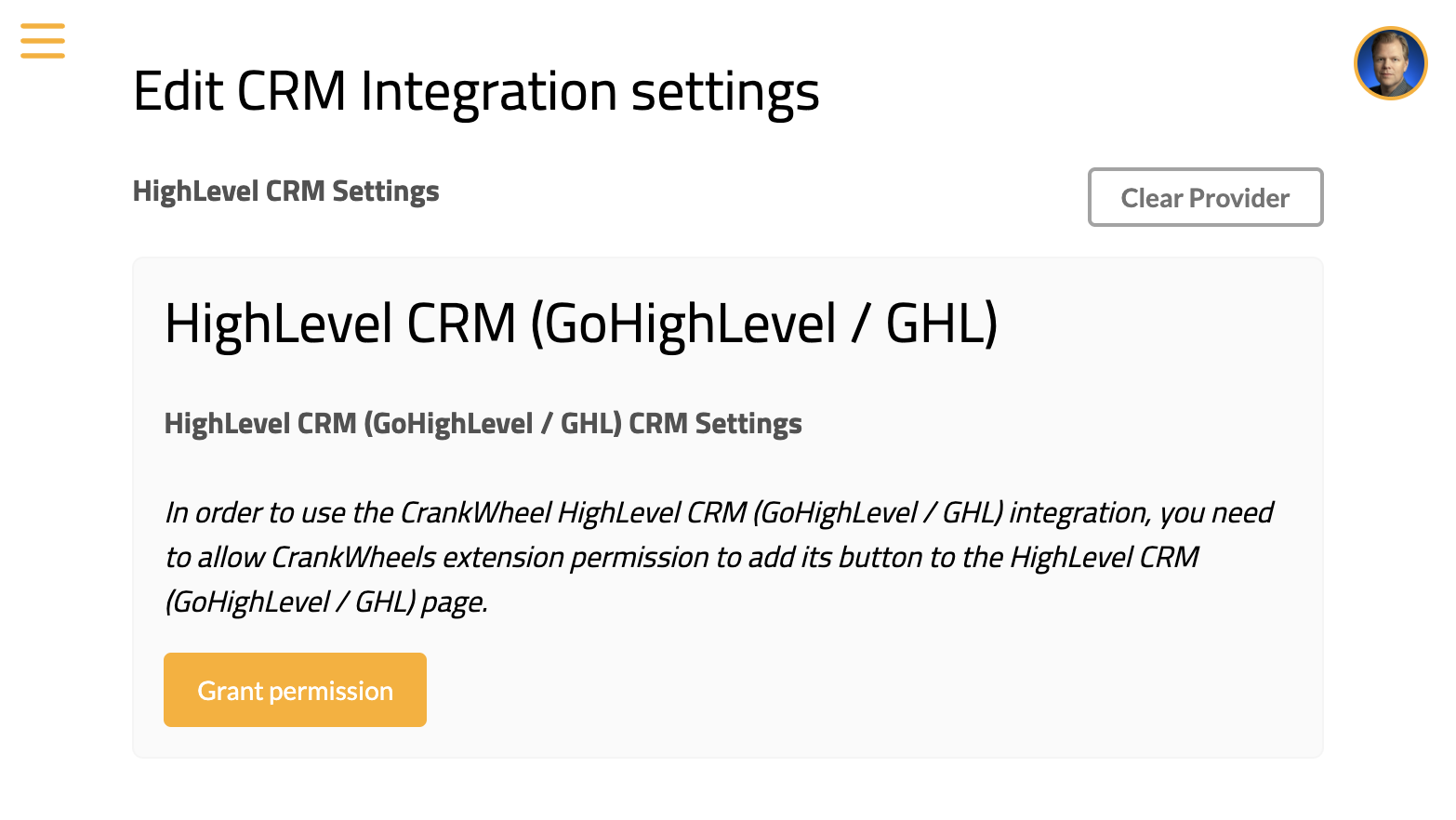
This page will show HighLevel CRM as the selected CRM integration. Please click the button labelled “Grant Permission”.
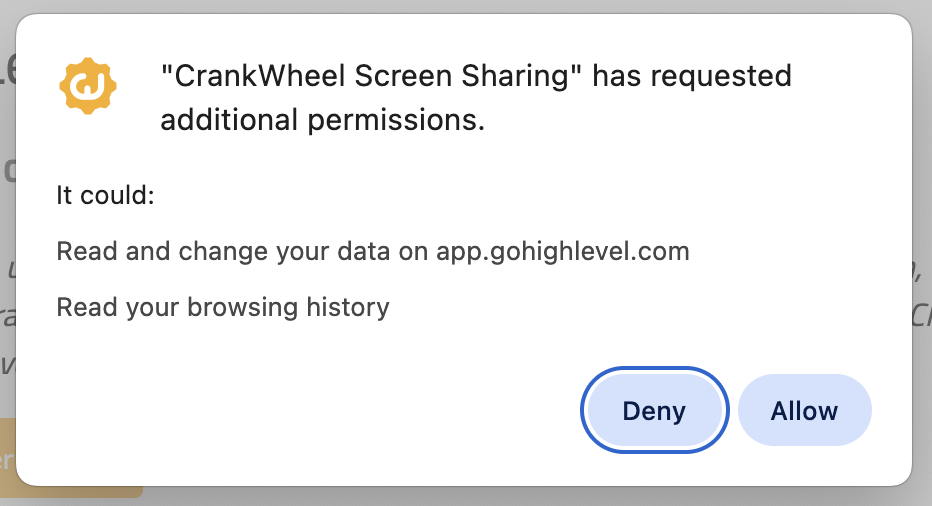
A dialog will open asking you if you want to allow the CrankWheel extension to read or edit pages on app.gohighlevel.com. Click Allow to enable the extension.
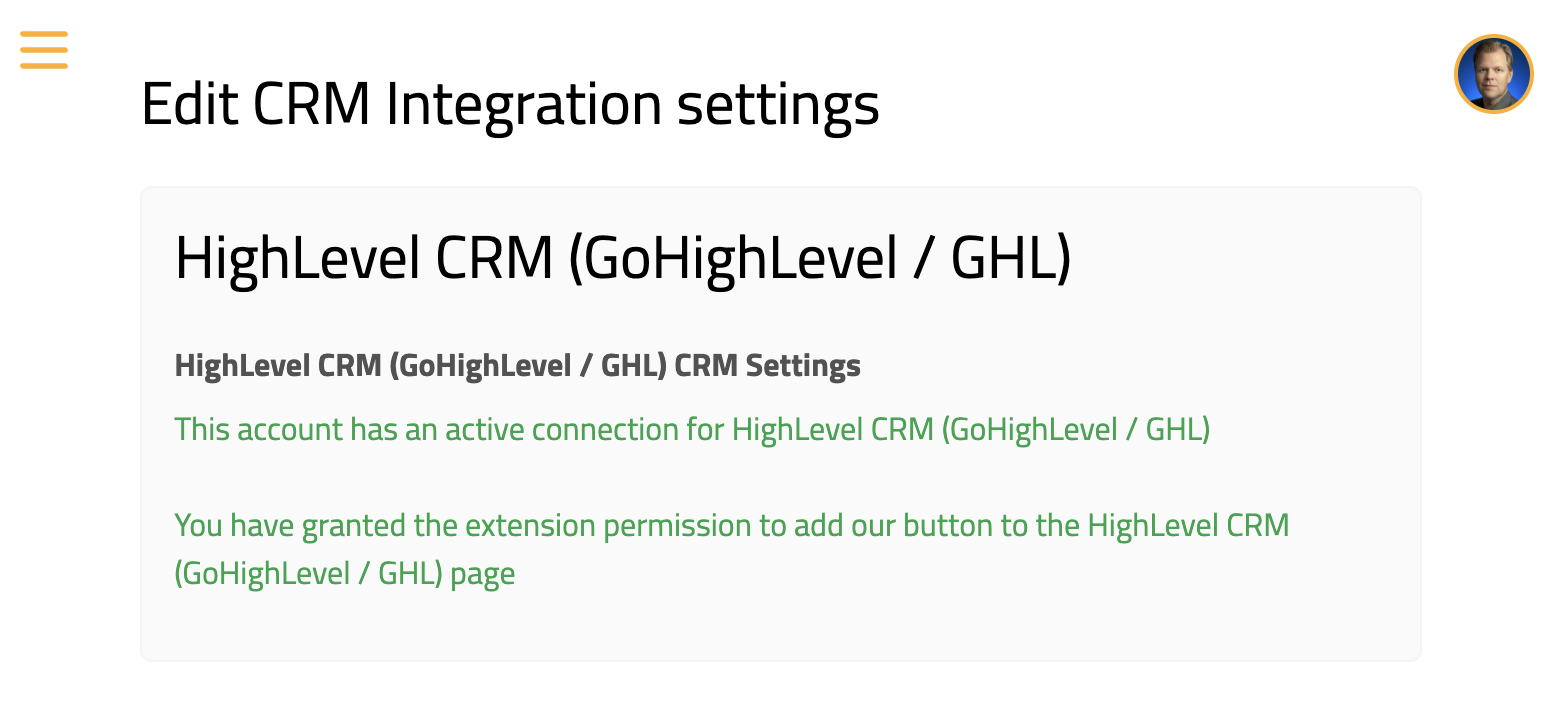
At this point, assuming your administrator already enabled the connection to HighLevel, the integration page should show as follows and you will be ready to start using the integration.
Step 2 - Start a meeting from HighLevel
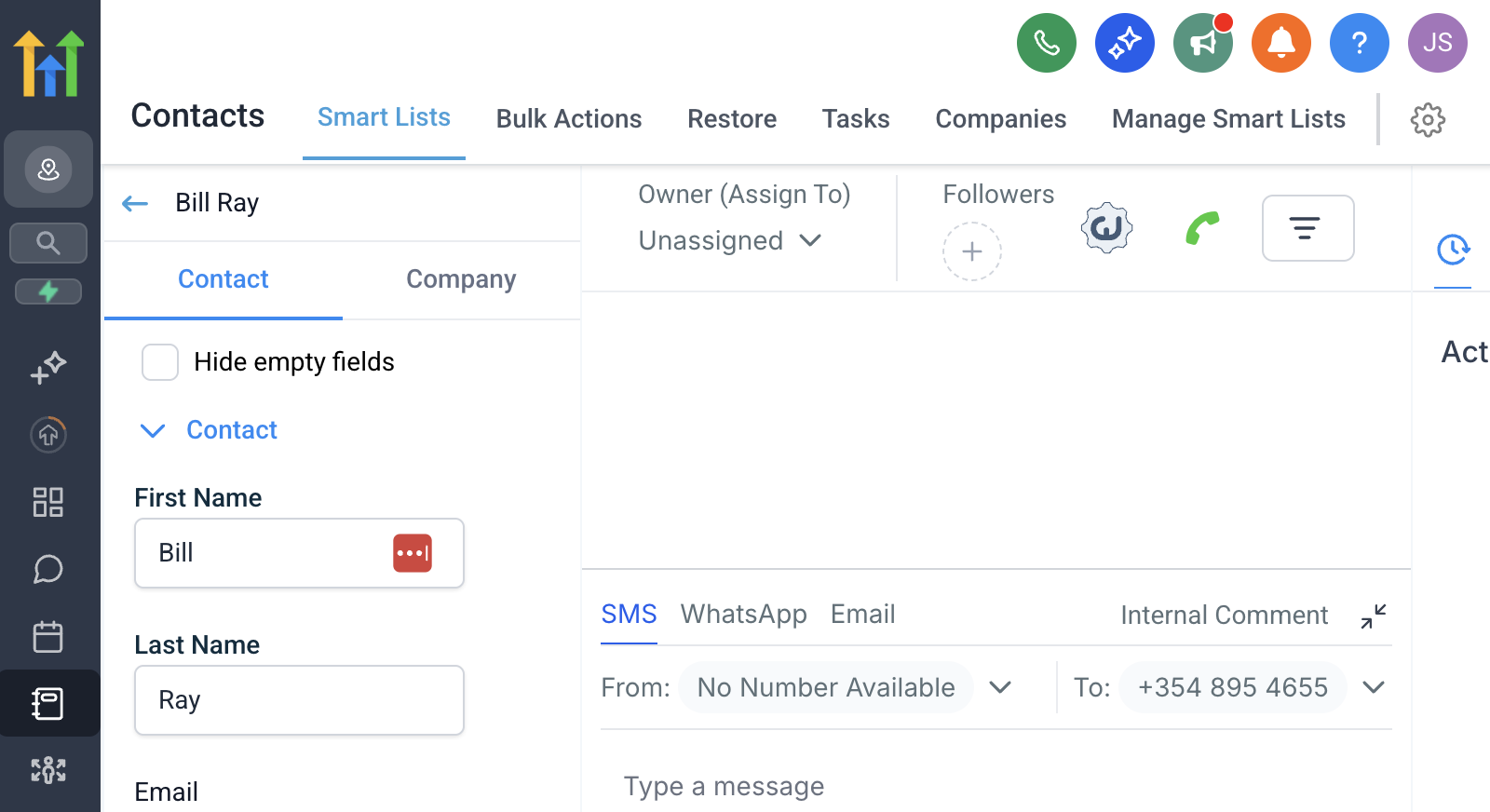
Open a contact in HighLevel. You should see a CrankWheel button next to the phone and filter buttons at the top of the contact card. You can click either this button, or the extension button (right hand side, a bit above the web page) to launch CrankWheel with this contact’s details.
White-label / LeadConnector users
If you are using a custom domain for HighLevel (such as through LeadConnector), the CrankWheel button will not appear on your contact pages. The in-page CrankWheel button on contact pages currently only works when using direct CRM integrations such as “GoHighLevel”, “HubSpot CRM” or “Max Methodology”.
You can still use CrankWheel with your contacts. Just click the CrankWheel browser extension button at the top of the page while viewing a contact. This works the same way: it will launch CrankWheel with the contact’s email and phone number pre-filled, and it will write back meeting details to the contact in HighLevel.
We are working on adding support for the in-page button on custom LeadConnector domains, and expect to release this by end of May 2026. If you would like your custom domain to be added, email support@crankwheel.com with your domain details.
Launching a meeting
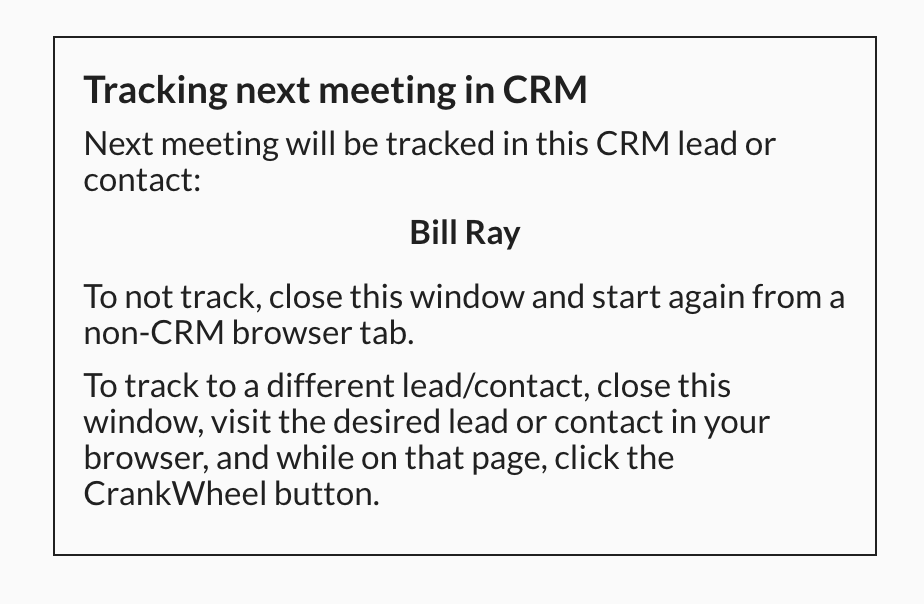
Clicking that button will launch the CrankWheel control panel. You will see a message indicating that the next meeting will be tracked to the contact you chose. When you start a meeting you will see that the fields for email and phone number will be pre-filled with the person’s contact details from HighLevel.
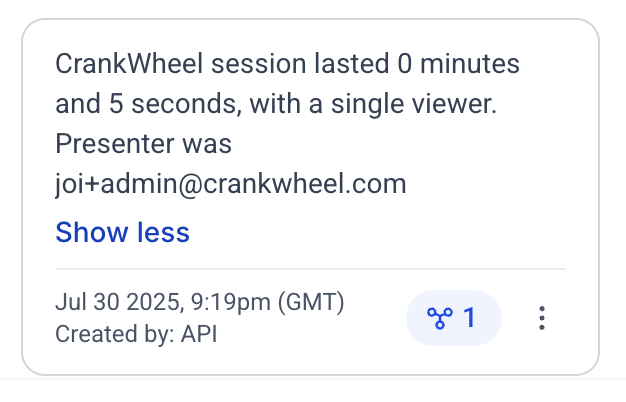
At the conclusion of your meeting, you will also see that the notes for the contact in HighLevel will contain an entry for the CrankWheel meeting, and a link to any recording made.