The High-Stakes Demo Checklist: 10 Essentials for a Flawless Screen Share
A sales demo checklist is a professional framework used by Account Executives to ensure technical reliability and presentation quality during a live product walkthrough. This checklist functions by standardizing preparation tasks, such as testing bandwidth and managing system notifications, to prevent disruptions during a screen share. Maintaining a consistent demo process is essential for Sales Engineers to build trust with C-level executives and avoid technical friction that can stall deal momentum. Learning how to prepare for sales demos effectively is the first step toward closing more deals.
There’s a specific kind of dread that hits right before a high-stakes demo. You’ve got key decision-makers on the call. The deal is live. And somewhere in the back of your mind, you’re running through every possible way it could go wrong.
That anxiety isn’t irrational. Technical glitches, cluttered screens, and poor follow-up are responsible for more lost deals than most Account Executives want to admit. The good news: nearly every demo disaster is preventable. What separates a forgettable screen share from a deal-closing presentation isn’t talent, it’s preparation.
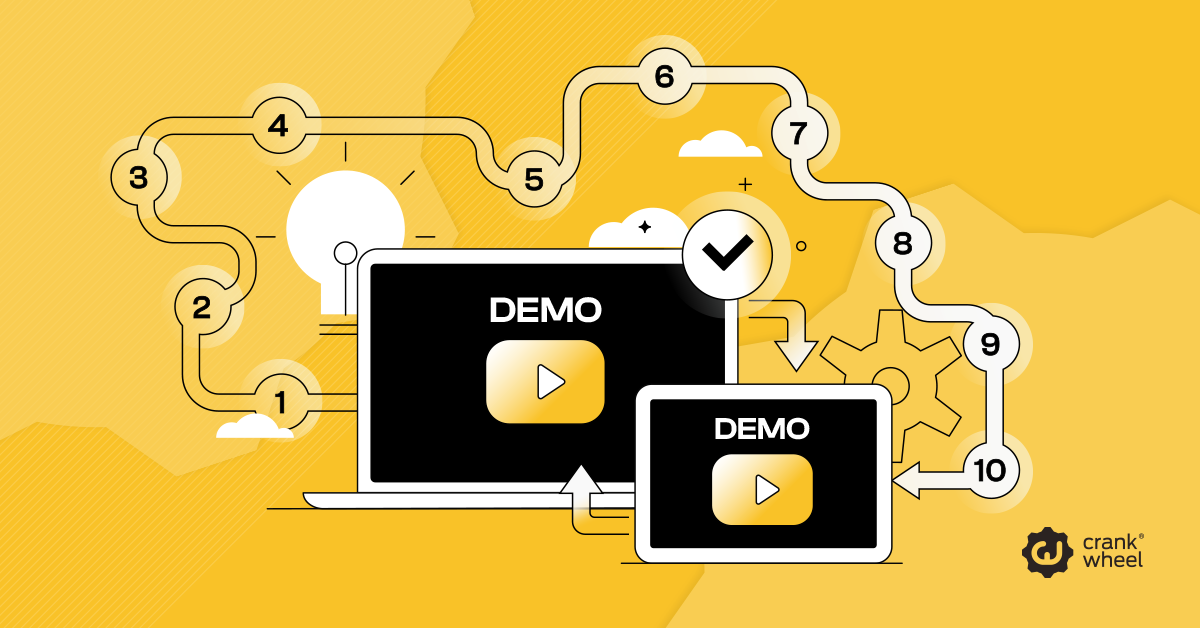
This checklist gives you 10 concrete steps to run through before, during, and after every demo. Work through them consistently, and the pre-call dread starts to fade.
Common Causes of Sales Demo Failures and Technical Friction
Most demo failures share a common root: the presenter treated the call as the starting point rather than the finish line. By the time the screen share begins, it’s too late to fix a slow internet connection, a desktop covered in unrelated files, or a notification that pops up mid-pitch revealing a personal message.
There’s also the pressure of the audience. Presenting to a director or VP raises the stakes considerably. Decision-makers are time-poor and quick to disengage. A single lag, a wrong window, or a fumbled transition can shift the energy of a call from “interested” to “skeptical” in seconds. Research published in Nature found that even brief video glitches (a screen freeze, an audio lag) significantly reduced a viewer’s willingness to work with a salesperson.
This Video Communication checklist is organized by phase: before the call, during the call, and after. Follow it in order.
Pre-Demo Checklist: Four Essential Steps for Technical Readiness
These steps happen before you dial. Set aside 15–20 minutes ahead of every significant demo to run through them.
Step 1: Verify Internet Bandwidth and Terminate Background Applications
Run an internet speed test before the call to confirm a minimum of 10 Mbps upload for a reliable screen share. Close every application you don’t need during the demo (streaming services, cloud sync tools, large downloads, anything competing for bandwidth). Lag that appears minor on your end can look catastrophic to a viewer.
Step 2: Clean Desktop Workspace and Organize Browser Tabs
Open only what you plan to show. Arrange tabs in the order you’ll present them. Move sensitive files and unrelated folders off your desktop. A clean screen signals preparation and keeps the viewer’s attention exactly where you want it.
Step 3: Disable System Notifications at the Operating System Level
Disable system notifications at the operating system (OS) level to prevent popups from interrupting the presentation. Silencing your phone isn’t enough if Slack or email popups can interrupt the screen share. Test this by having a colleague send you a message while your setup is running, before the call begins.
Step 4: Select and Test Sales Engagement Software or Screen Sharing Tools
If you’re using a no-download Sales Engagement Software platform like CrankWheel, send yourself a test link and open it on a secondary device to confirm the viewer experience. Verify the audio, check that the correct tab or window is sharing, and make sure the display resolution is sharp. Using a tool that requires zero downloads on the prospect’s side removes a significant barrier.
Live Sales Demo Execution: Three Best Practices for Professional Delivery
Preparation gets you to the starting line. These three steps determine what happens once the demo is live.
Step 5: Confirm Screen Visibility with the Prospect Before Presenting
Don’t assume the share is working. Ask directly: “Can you see my screen clearly?” Give them three seconds to respond before moving forward. This one question prevents the painful scenario of presenting for five minutes to someone watching a frozen loading screen.
Step 6: Maintain a Deliberate Presentation Pace for Information Processing
Presenters consistently underestimate how much faster they speak during live demos. Slow your pace by about 20% compared to how you’d explain something in conversation. Pause after key points. Use phrases like “I’ll give you a moment to look at that” to let information land before moving to the next section. Decision-makers need processing time, especially when they’re evaluating while on a call.
Step 7: Monitor Viewer Engagement Using Sales Engagement Software Features
The best screen sharing tools give you a real-time view of whether your prospect is actually watching. CrankWheel’s sales engagement monitoring, for example, alerts you when a viewer has switched tabs or disengaged. If attention drops, don’t power through. Ask a question. “What are you seeing on your end?” or “Does that pricing structure make sense given what you shared earlier?” brings disengaged viewers back into the conversation.
Mobile Optimization Strategies for Executive Sales Demos
This is the scenario that trips up even experienced Sales Engineers. A C-level executive joins your demo from their phone, often without warning, and suddenly everything you designed for a 27-inch monitor is crammed into a 6-inch screen.
Here’s how to make sure that moment doesn’t cost you the deal:
- Keep your font sizes large. Any text you plan to highlight should be readable at a glance on mobile. A good test: view your key slides or pages on your own phone before the call. If you’re squinting, so will they.
- Use a Sales Engagement Software tool built for mobile viewers. CrankWheel was specifically designed so prospects can view a screen share from any device (including mobile phones) through their existing browser, with no downloads or account setup required. The viewer experience adapts automatically.
- Simplify what you show. On mobile, dense data tables and small-print documents lose their impact. Lead with your single most important visual per section, then offer to send supporting detail after the call.
- Use verbal signposting. When a viewer is on a smaller screen, spatial references like “top right corner” become unreliable. Instead, describe what you’re pointing to: “I’m looking at the pricing tier in the middle of the page—the Professional plan.”
- Confirm the mobile experience directly. If you know an executive will be on their phone, ask them to click your viewer link and confirm they can see the content clearly before you begin the main presentation.
Post-Demo Workflow: Three Steps to Maintain Sales Momentum
A strong demo followed by weak follow-up is a missed opportunity. These final steps protect the work you’ve already done.
Step 8: Send a Post-Demo Follow-Up Email and Session Recording Within 24 Hours
Strike while the conversation is fresh. Your follow-up email should include a brief recap of the key points discussed, any specific questions or objections raised on the call, and a next step with a clear deadline.
If your Sales Video Communication tool recorded the session, include a link. CrankWheel’s screen recorder captures the session and allows you to send a clickable, animated preview that prospects can revisit at their own pace. This is useful for decision-makers who want to replay key sections before signing off.
Step 9: Log Session Data in the Customer Relationship Management (CRM) System
Log session data in your Customer Relationship Management (CRM) system immediately to ensure accurate deal tracking. Session duration, what was shared, and any noted objections should be logged while your memory of the call is accurate. CrankWheel integrates natively with Salesforce, HubSpot, Zoho CRM, and GoHighLevel, automatically logging session details—including recording links—to the relevant contact record the moment the call ends. That removes the manual step entirely.
Step 10: Conduct a Post-Demo Review to Improve Future Performance
Set aside five minutes after each significant demo to ask yourself three questions: Where did engagement drop? What question caught me off guard? What would I change about the order of the presentation? Over time, this habit compounds. Small improvements to pacing, slide order, or objection handling can meaningfully shift your close rate.
Common post-demo mistakes to avoid
- Sending a generic “Great to meet you” email. It signals you weren’t listening. Reference specific details from the conversation.
- Ignoring technical feedback. If a prospect mentioned they had trouble viewing something, that’s data. Fix it before the next demo.
- Leaving the next step vague. “I’ll be in touch” is not a next step. Name a specific action, a specific date, and who’s responsible for it.
Conclusion: Enhancing Close Rates Through Consistent Demo Preparation
A flawless demo isn’t about being perfect under pressure. It’s about removing the variables that create pressure in the first place. When your environment is clean, your tool is tested, and your follow-up is ready to go, you walk into every call with the confidence to focus entirely on the prospect in front of you. Understanding how to prepare for sales demos ensures you maintain this focus consistently.
CrankWheel is a Sales Engagement Software built for exactly this kind of high-stakes selling. No downloads for prospects, real-time engagement monitoring, mobile-ready viewer links, CRM-integrated session logging, and built-in screen recording.
Try CrankWheel for free at crankwheel.com and run your next demo with one less thing to worry about.
Frequently Asked Questions
What is the best way to prepare for sales demos?
To ensure success, you must standardize your technical setup by verifying internet bandwidth, clearing your desktop, and disabling system notifications. Using specialized Sales Engagement Software that enables instant, no-download screen sharing for prospects allows you to focus on the presentation rather than troubleshooting technical barriers during the live call.
How do you keep a prospect engaged during a live screen share demo?
Use a screen sharing tool that includes engagement monitoring so you can see when a viewer has switched tabs or disengaged. CrankWheel alerts presenters in real time when a viewer’s attention drops. Beyond the tool, pace your delivery deliberately, pause after key points, and ask direct questions to re-engage a distracted prospect.
How do you optimize a sales demo for a C-level executive watching on mobile?
Use large font sizes, simplify visuals to one key element per section, and rely on verbal signposting rather than spatial references. Choose a no-download Sales Engagement Software platform, like CrankWheel, whose viewer experience adapts automatically to mobile browsers. Confirm the executive can see your content clearly before you begin the main presentation.
What should you include in a follow-up email after a screen share demo?
Send it within 24 hours. Include a recap of the key points discussed, a direct response to any objections raised on the call, a link to the session recording if one was captured, and a clearly defined next step with a specific date and owner. Avoid generic language and be sure to reference details from the conversation.